How can I provide pcap file as input to simulation?
| Applicable Releases | v11 | v12 |
NetSim has an inbuilt traffic generator (Application) which can be used to model unicast/multicast/broadcast traffic in the network with support for application types such as CBR, Custom, Voice, Video, FTP, Database, etc. NetSim also allows users to provide pcap file as input to NetSim and configure applications using the real IP addresses and port numbers.
An example pcap file for NetSim:
Any pcap file can be provided as input to NetSim by following the procedure explained here. In this example, we are generating a pcap file by running Wireshark and generating traffic using ping. Ping is initiated form the Source IP: 192.168.0.154 to the Destination IP: 192.168.0.192. The pcap file will contain all incoming and outgoing packets from the system in which the capture is being done.

Wireshark capture can be stopped after capturing required packets and saved in the desired location with a user-defined name (*.pcap). Eg: Raw.pcap
Input multiple pcap files obtained from different devices by merging them using wireshark
Currently in NetSim users can provide only one .pcap file as an input. If the user has multiple pcap files to Emulate, they can merge them as explained below:
- Open first pcap file using wireshark
- Click on File > Merge
- Select the other pcap that you wish to merge
- Click on Open
- Again File > Save

Modification of pcap file as per NetSim's requirement
Note that the PCAP file needs to be edited suitably before providing it as input to NetSim. The "editcap" application in the Wireshark installation directory can be used to edit any pcap file.
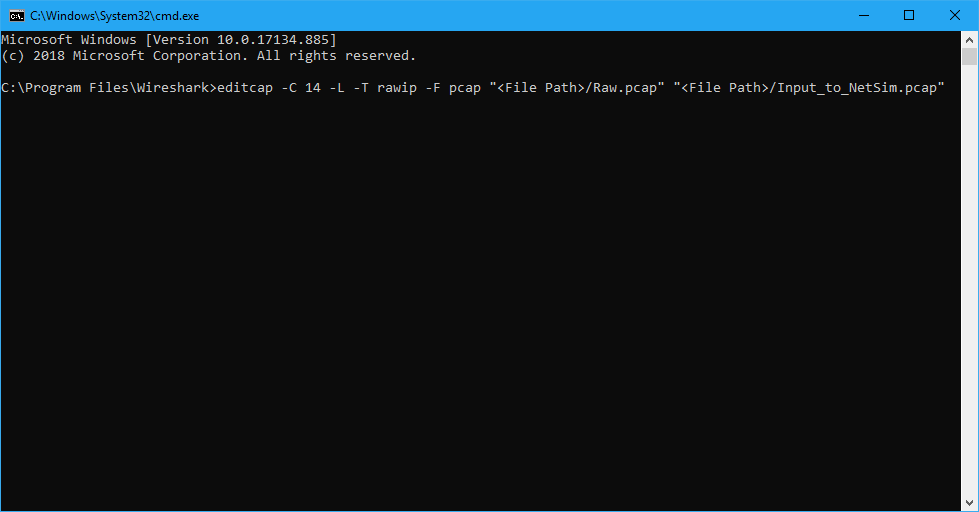
Go to Wireshark installation directory [C:\Program Files\Wireshark]

Open command prompt, and execute the cmd editcap -C 14 -L -T rawip -F pcap "<File Path>/Raw.pcap" "<File Path>/Input_to_NetSim.pcap". This command edits the pcap file into a format understandable by NetSim.
Where
- -C [offset:]<choplen> chop each packet by <choplen> bytes. Positive values chop at the packet beginning, negative values at the packet end. If an optional offset precedes the length, then the bytes chopped will be offset from that value. Positive offsets are from the packet beginning, negative offsets are from the packet end. You can use this option more than once, allowing up to 2 chopping regions within a packet provided that at least 1 chosen is positive and at least 1 is negative.
- -L adjusts the frame (i.e. reported) length when chopping and/or snapping
- -T <encap type> set the output file encapsulation type; default is the same as the input file. An empty "-T" option will list the encapsulation types.
- -F <capture type> set the output file type; default is pcapng. An empty "-F" option will list the file types.
Providing pcap file as input to NetSim:
Press Win+R and Run "C:\Windows\system32\rundll32.exe" sysdm.cpl,EditEnvironmentVariables
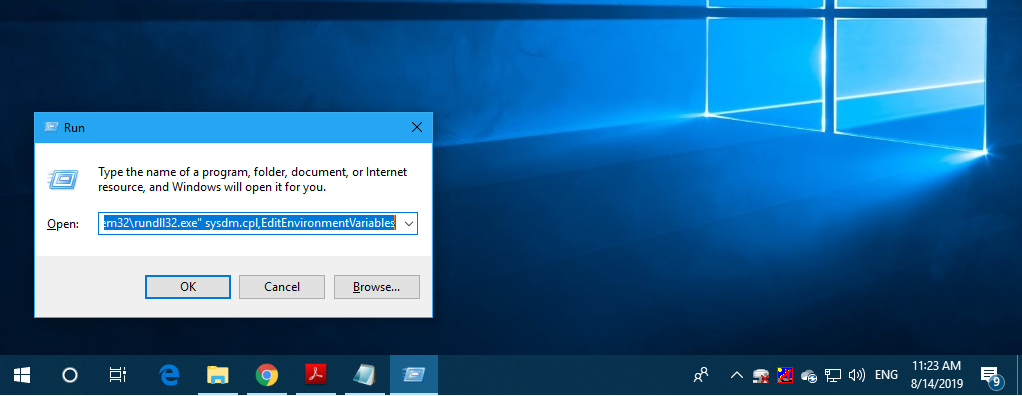
Or users can Goto Windows Search -> Type Edit the System Environment Variables -> Click on Environment Variables
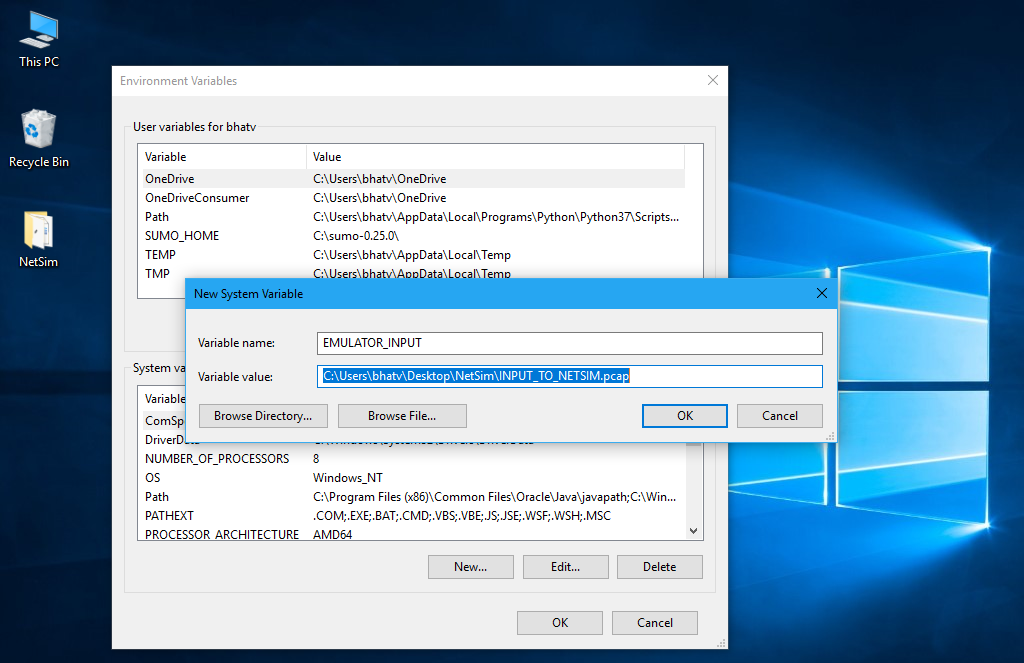
In the System variables pane, select new and give EMULATOR_INPUT in the variable name text box and give the path of the pcap file along with the file name in the variable value text box (Ex: C:\Users\bhatv\Desktop\NetSim\INPUT_TO_NETSIM.pcap) and then click on OK.
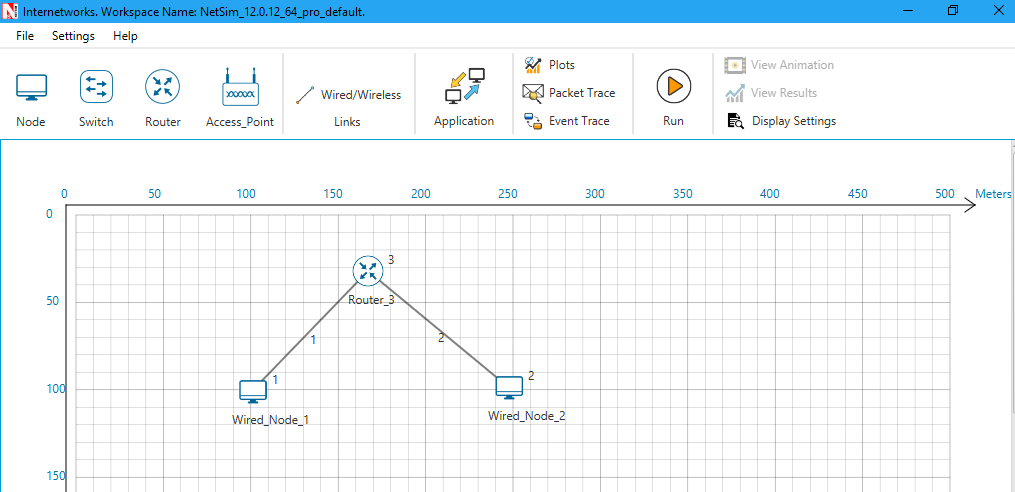
Start NetSim as an administrator. Now create a simple scenario in NetSim. For example, create a scenario in Internetworks with 1 router and 2 wired nodes as shown below. Create an Emulation application by giving the real source and destination IP’s present in the pcap file. In this case, we have used the IP addresses 192.168.0.154 and 192.168.0.192 which we have used for generating traffic using PING.
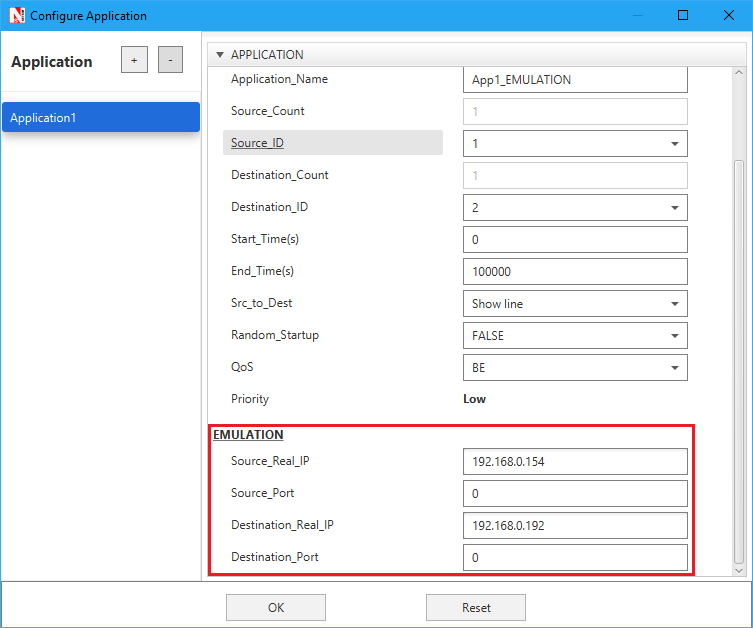
- Multiple applications can be configured based on the packets captured. For instance, there can be one more application configured for packets from 192.168.0.192 to 192.168.0.154
- NetSim Emulator will read the packets from pcap file as per the source and destination that users are inputting in the application properties.
- After the simulation, the NetSim results window provides Packet Capture Metrics. Here users can observe 4 different types of packets
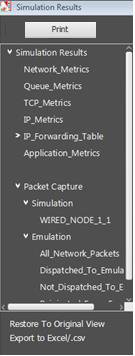
- Network Packets (contains all the Packets present in the pcap file)
- Dispatched to Emulator (contains only the packets for which emulation application has been configured)
- Non-Dispatched To Emulator (contains packets for which emulation application is not configured)
- Reinject from Emulator (contains the packets that have successfully left NetSim Emulator without error/collision)