How do I use an LLM or agentic AI with NetSim?
What is LLM?
A large language model, or LLM, is an AI system trained in large collections of text and code. It can read instructions, summarize material, explain a file, and edit drafts in natural language or code. In NetSim work, an LLM is most useful when you give it the exact file that needs to be changed and a short description of the result you want.
Why NetSim works well with LLMs
NetSim is well suited to this workflow because its scenarios, outputs, and source files are organized in a way that is easy to isolate. A simulation is usually driven by Configuration.netsim and supporting files under ConfigSupport. After a run, NetSim writes metrics, logs, and result files that can be reviewed or compared. In source-code editions, protocol implementations are grouped under src\Simulation by module, so you can give the model only the XML or C files related to one task.
Common NetSim tasks for LLM assistance
Common uses include:
- Create or modify Configuration.netsim from a working sample.
- Explain protocol parameters, XML fields, and the mapping between GUI settings and saved files.
- Draft C source-code updates for a protocol module, such as a log statement, timer event change, or packet-handling condition.
- Summarize metrics, log, or build errors and suggest the next check.
The sections below focus on two common workflows: generating a Configuration.netsim file and drafting source-code changes for NetSim protocols. The article also lists scenarios that are easy to run and capture as screenshots for a demo or training note.
Preparation
Before using an LLM with NetSim, collect the files and paths that the model needs.
- Sample configurations are available at <NetSim installation folder>\Docs\Sample_Configuration. One example path is C:\Program Files\NetSim\Pro_v15_0\Docs\Sample_Configuration.
- Protocol source code is available at <NetSim installation folder>\src\Simulation. One example path is C:\Program Files\NetSim\Pro_v15_0\src\Simulation.
- If you use a workspace copy of NetSim, use the workspace files instead of the installed files, since the workspace may include local changes.
- Ask the model to modify an existing file rather than invent a new structure from scratch. This reduces XML errors and source-code mismatches.
- For XML tasks, ask for only the contents of Configuration.netsim. For code tasks, ask for only the changed functions or a patch.
Generating a Configuration.netsim file
LLMs work best when they update a sample scenario that is already close to your target use case.
- Start with a working sample from <NetSim installation folder>\Docs\Sample_Configuration. Choose a sample that already uses the protocol family, traffic type, or mobility model you want.
- Provide the sample Configuration.netsim file to the model and describe the required changes. Include the number of devices, protocol settings, application traffic, simulation time, and output you want to study.
- Ask the model to return only the updated XML. This makes the output easier to review and paste into the file.
- Review the XML generated before you run it. Check node count, link definitions, protocol names, application start and stop times, and IP or MAC settings when relevant.
- Save the generated Configuration.netsim file in a test folder.
- Run the scenario from the workspace binary or the installed binary using NetSimCore.exe.
Example prompt
Use the attached Configuration.netsim as the base.
Ask the model to create 40 MHz and 80 MHz variants from the 20 MHz sample.
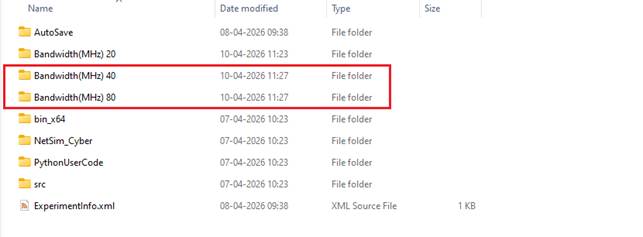

Example run command
NetSimCore.exe -iopath "<path to folder containing Configuration.netsim>" -license 5053@192.168.0.4
Generating C source code for custom protocols
An LLM can also help with draft source-code changes when you work with NetSim Standard or Pro source code.
- Open the source tree at <NetSim installation folder>\src\Simulation or in your workspace copy.
- Identify the smallest set of files needed for the change. In many cases, this is one .c file, one .h file, and any related enum or structure definition.
- Describe the change in a narrow way. Ask for one behavior change at a timer Event, such as adding a log, changing a timer event, or updating a packet-handling condition.
- Review the generated code before you build it. Check function names, include files, enum values, pointer usage, and memory handling.
- Rebuild the source from the matching workspace solution.
- Run a small scenario that exercises the modified code, then compare the result with the baseline sample.
Example prompt
Ask the model to add one log statement or change one route-timer value in AODV.c, then rebuild and run a small MANET case.
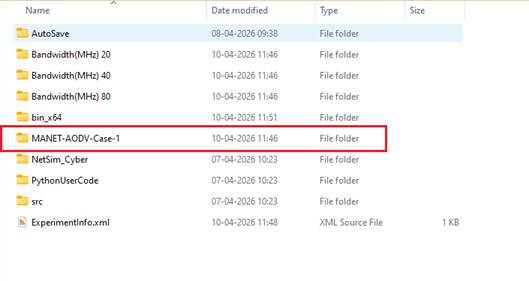
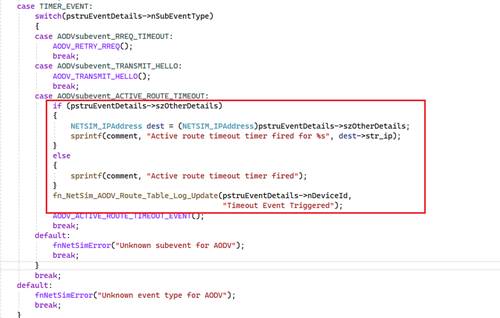
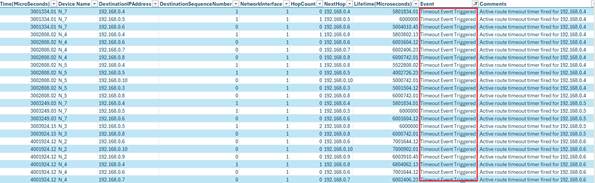
Run simulation and validate the output
- If the task was XML generation, open the scenario in NetSim GUI before the run when possible. This helps you confirm that the scenario and links were created as expected.
- If the task was source-code generation, build first and fix compiler errors before running the scenario.
- Use a small test case before you move to a larger scenario. A short run is easier to debug when the model changes to multiple parameters.
- Compare the result with the sample scenario that you started from. Check whether the key metric changed for the reason you asked for.
- If the first output is not correct, give the model the error message, the changed file, and the current result. Do not restate the entire task from scratch.
Troubleshooting
- If NetSim does not open the generated XML, compare it with the original sample and check for missing tags, invalid IDs, or unsupported enum values.
- If a source-code build fails, give the compiler error and the changed function back to the model. Ask it to fix the error in the current code instead of rewriting unrelated files.
- If the model invents API names or XML fields, ask it to use only symbols and attributes that are present in the attached files.
- If the request is large, split it into smaller tasks. First create the scenario, then add traffic, and then adjust protocol parameters.
- Keep one working baseline file so you can compare the generated output with a scenario that is already known to run.