NetSim + Gen AI: Using AI Coding Agents (Claude Code, Cursor, Copilot, Codex, Windsurf) with NetSim
What is an AI coding agent?
An AI coding agent is a Large Language Model (LLM) tool that reads, writes, and runs code on your behalf. You describe what you want in plain language. The agent reads files from your project, makes changes, runs commands, and checks results. It operates inside your development environment with access to the same files, compilers, and command-line tools you use.
This is different from a chatbot. A chatbot answers questions. An agent acts on your project: it edits source files, builds them, runs a simulation, reads the output, and adjusts. The interaction is a loop, not a one-shot question and answer.
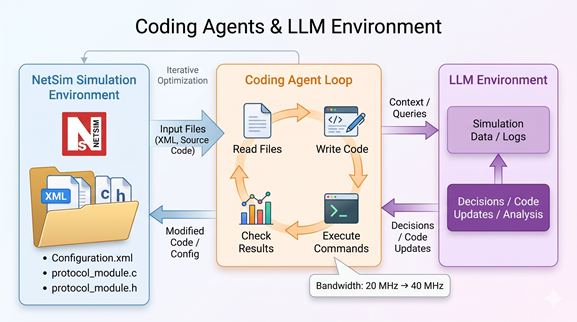
Several AI coding agents exist today. The table below lists tools that have been tested with NetSim internally at TETCOS.
Tool | Interface | How it accesses your project? |
Claude Code | Terminal (CLI), desktop app, IDE extensions | Reads and writes files directly in your project folder |
GitHub Copilot | IDE plugin (VS Code, JetBrains) | Works inside your editor with the open project |
Cursor | Standalone editor (VS Code fork) | Opens your project folder as a workspace |
Codex | Terminal (CLI) | Reads and writes files in your project folder |
Windsurf | Standalone editor | Opens your project folder as a workspace |
All of these works with NetSim. The concepts in this article are tool-agnostic. The detailed walkthrough later in this article uses Codex, but the workflows apply to any agent.
Why NetSim works well with AI agents
NetSim has four properties that make it easy for an AI agent to work with.
- Single entry point. A simulation is defined by one file, Configuration.netsim, with supporting files in a ConfigSupport subfolder. The agent does not need to discover scattered configuration across multiple systems. You point it at one file, and it has the full scenario.
- Command-line interface. NetSim simulations can be run from the terminal using NetSimCore.exe. This is what makes AI-driven automation practical. The agent does not need to click through a GUI. It constructs a command, runs it, and reads the output.
- Structured output. After each run, NetSim writes results to known locations: Metrics.xml for summary statistics, CSV files for protocol-level logs, and text logs for errors. These are machine-readable. The agent can parse a Metrics.xml file and tell you that throughput dropped by 12% between two runs without you opening a spreadsheet.
- Modular source code. In source-code editions (Standard and Pro), protocol implementations are organized under src\Simulation by module. Each protocol (AODV, LTE_NR, IEEE802_11, TCP, etc.) lives in its own directory with its own Visual Studio project. You can point the agent at one module and keep its working context small and focused.
What an AI agent can do with NetSim
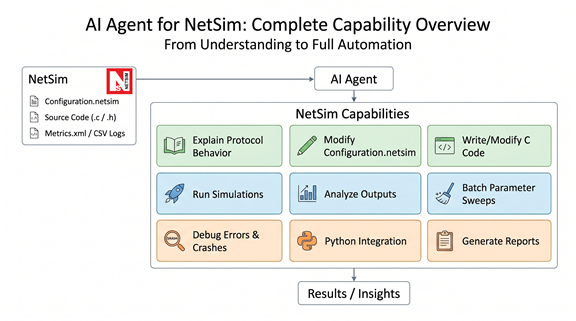
Here is the full range of tasks, from simple to advanced
1. Explain protocol behavior and parameters
2. Generate or modify Configuration.netsim files
3. Write or modify C source code in protocol modules
4. Run simulations end-to-end from the command line
7. Debug build failures and simulation crashes
8. Work with the Python interface
9. Generate documentation and reports from simulation results
1. Explain protocol behavior and parameters
Use the agent as a tutor. Point it at a protocol module's source code and ask questions.
- "What does the LTENR_SLOT_GET_UESCH_INFO function do?"
- "How does AODV decide when to start a route discovery?"
- "What is the difference between the CQI and MCS fields in Configuration.netsim?"
The agent reads the .c and .h files, follows function calls, and explains the logic in plain language. This is useful when onboarding to an unfamiliar protocol module or when the documentation does not cover an implementation detail.
You can also point the agent at the Configuration.xsd schema file (located in the bin_x64 folder) and ask it to explain what values a particular XML attribute accepts, or what elements are required under a given parent.
2. Generate or modify Configuration.netsim files
Start from a working sample. NetSim ships with sample configurations at:
<Install folder>\Docs\Sample_Configuration\
Categories include 5GNR_mmWAVE, NTN, Internetworks, MANET, VANET, WSN, UWAN, IOT, LTE, SDN, Satellite-Communication, and others. Pick the sample closest to your target scenario and give it to the agent.
Example prompt:
Use the attached Configuration.netsim as the base. This is a 20 MHz in Effect-of-Bandwidth-in-WiFi-802.11ac. Create two variants: one at 40 MHz bandwidth and one at 80 MHz bandwidth. Keep everything else the same.
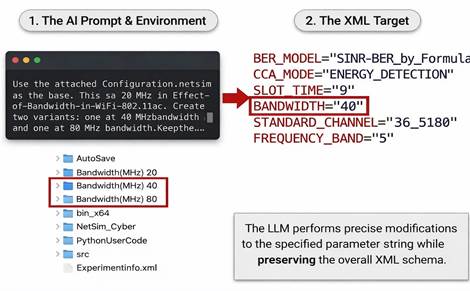
The agent reads the XML, identifies the bandwidth parameter, and produces two modified files. Review the output before running it. Check node counts, link definitions, protocol names, and application start/stop times.
Tips:
- Always start with a working sample. Do not ask the agent to generate a Configuration.netsim from scratch.
- Ask for only the contents of Configuration.netsim, not an explanation alongside it.
- If the file is large, tell the agent which section to change: "modify only the APPLICATION entries" or "change only the gNB physical layer parameters."
3. Write or modify C source code in protocol modules
An agent can draft source-code changes when you work with NetSim Standard or Pro source code.
How to scope the task:
- Open your workspace source tree at <Workspace>\src\Simulation.
- Identify the smallest set of files needed. Often this is one .c file, one .h file, and a shared enum or struct definition.
- Describe a narrow change. One behavior change per request: add a log line, change a timer interval, modify a packet-handling condition, add a new metric counter.
Example prompt:
In AODV.c, add a log statement that prints the route-timer. Use the existing NetSim logging functions.
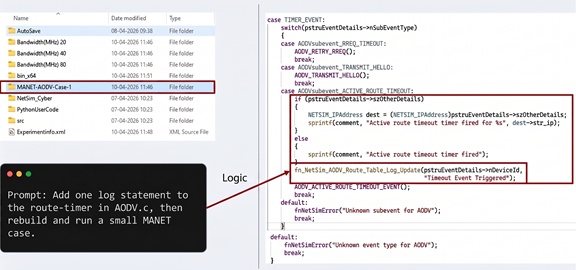
After the agent writes code:
- Check function names, include files, enum values, pointer usage, and memory handling.
- Build from the workspace solution (NetSim.sln). Each protocol module compiles as a DLL.
- Run a small scenario that exercises the modified code and compare against the baseline.
4. Run simulations end-to-end from the command line
An AI agent with terminal access can run NetSim simulations directly. This is the workflow:
- Copy the configuration folder to a writable location (NetSim writes output into the working folder).
Set environment variables: NETSIM_AUTO=1 suppresses the "press any key" prompt. NETSIM_ERROR_MODE=1 suppresses the Windows error dialog on crash.
Run NetSimCore.exe with the required flags.
Read the output files.
NetSimCore.exe -apppath "<Install folder>\bin\bin_x64"
-iopath "<writable folder>"
-license "<path to .lic file>"
The agent sees the console output as the simulation runs (license check, config read, progress 0-100%, metrics calculation, "NetSim end"). If the simulation fails, the agent reads the error output and responds.
This means you can say: "Run the attached 5G NR scenario and tell me the downlink throughput." The agent copies the config, runs the simulation, parses Metrics.xml, and gives you the number.
5. Analyze simulation output
NetSim produces structured output that an agent can parse and reason about.
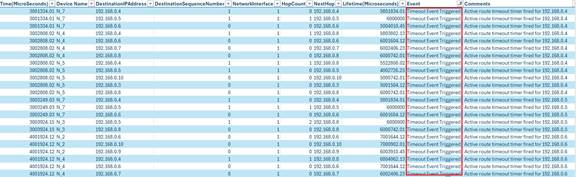
Metrics.xml contains summary tables organized as <MENU> elements, each holding a <TABLE> with named column headers and data rows. Key tables include:
- Application_Metrics: throughput (Mbps), delay (microseconds), jitter (microseconds) per application flow
- Link_Metrics: packets transmitted, errored, collided per link
- IP_Metrics: packets sent, forwarded, dropped, TTL expired per device
- TCP_Metrics: segments sent/received, retransmissions, ACKs per connection
- Queue_Metrics: queued, dequeued, dropped packets per device port
Protocol-level CSV logs provide per-slot or per-event detail. For 5G NR, these include:
- LTENR_Radio_Resource_Allocation.csv (PRB allocation per slot per UE)
- LTENR_PRB_Utilization.csv (per-slot PRB usage percentage)
- LTENR_Radio_Measurements_Log.csv (SINR, path loss, CQI, MCS per UE)
- LTENR_CodeBlock_Log.csv (HARQ block error/success with BLER)
- LTENR_Handover_Log.csv (handover events with SNR values)
These CSV logs are enabled through a ProtocolLogsConfig.txt file placed in the iopath folder. The format is one flag per line:
LTENR_Radio_Measurements_Log=True
LTENR_Radio_Resource_Allocation=True
APPLICATION_PACKET_LOG=True
Example prompts:
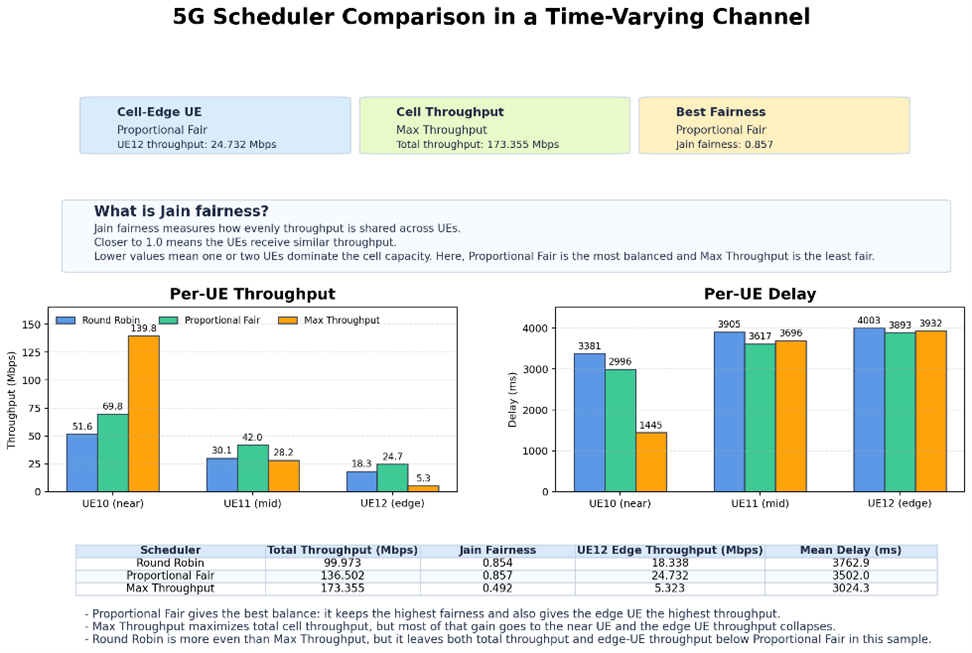
Prompt: Take the built-in 5GNR Scheduling example with the time-varying channel model. Run the Round Robin, Proportional Fair, and Max Throughput variants. Compare per-UE throughput, per-UE delay, total cell throughput, and Jain’s fairness index, then explain which scheduler helps the cell-edge UE and which one maximizes total cell throughput.
6. Run batch parameter sweeps
Combine configuration generation, simulation execution, and output analysis into a single automated workflow.
Example prompt:
Prompt: Run a sweep over the built-in MANET mobility Case-10, Case-20, and Case-30 scenarios for AODV and OLSR, and create matched DSR variants from the AODV cases so all three protocols use the same topology and traffic pattern. Parse Metrics.xml for each run and compare average application throughput, total throughput, packets received, and average delay.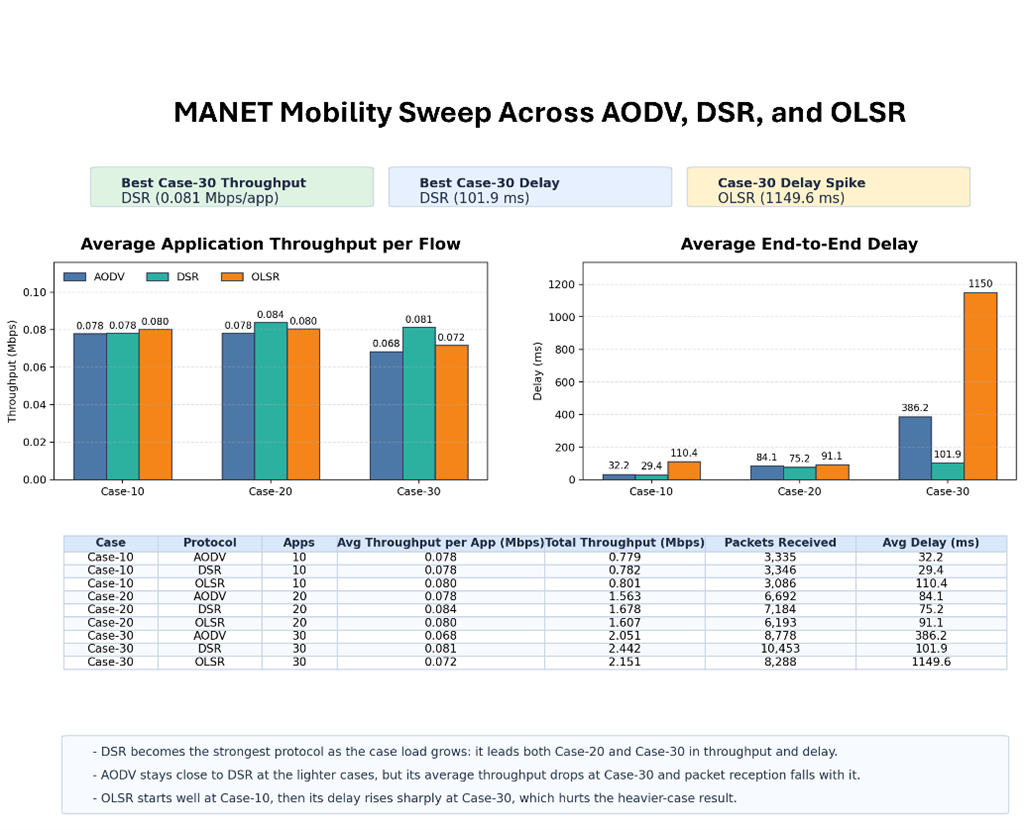
The agent will:
- Copy the config folder three times.
- Modify the random seed in each Configuration.netsim.
- Run each simulation sequentially.
- Parse each Metrics.xml.
- Present a comparison table.
You can sweep over any parameter: bandwidth, number of UEs, mobility speed, scheduling algorithm, propagation model, simulation duration. The agent handles the file manipulation and command execution. You read the summary.
For larger sweeps, the agent can write a shell script or Python script that you run independently, rather than executing each simulation interactively.
7. Debug build failures and simulation crashes
When something goes wrong, give the agent the error and the relevant context.
- Build errors: Paste the compiler error. The agent reads the source file at the failing line, identifies the issue (missing include, type mismatch, undefined symbol), and suggests a fix. Since each protocol module is a separate Visual Studio project, the agent can also check the .vcxproj file for missing source files or incorrect include paths.
- Simulation crashes: The agent can read log files from the log\ subfolder in the iopath. It can also read the console output from the failed run. Give it the error message and tell it which protocol module you modified. It will read the source and look for common issues: null pointer dereference, out-of-bounds array access, uninitialized variables.
- XML validation errors: If NetSim does not open a generated Configuration.netsim, the agent can compare it against the original sample or validate it against Configuration.xsd. Common issues: missing required elements, invalid enum values, mismatched device or interface IDs.
Example prompts:
NetSimCore.exe crashes at 34% progress with "Access Violation in libLTE_NR.dll". I modified LTENR_HARQ.c. Here is the function I changed: [paste function]. What is wrong?
The build of the AODV project fails with "error C2065: 'AODV_ROUTE_TIMEOUT' undeclared identifier". Find where this should be defined.
8. Work with the Python interface
NetSim provides a Python socket-based interface for runtime interaction with simulations. The workspace includes example scripts under PythonUserCode\ for packet modification at different layers:
- L3 (Network layer): Modify IPv4/IPv6 header fields
- L4 (Transport layer): Modify TCP/UDP header fields (ports, flags, sequence numbers)
- L5 (Application layer): Modify payload content
An agent can help write these Python modifier scripts. The interface uses ctypes to access C structures passed as PyCapsule objects. The function signatures follow a fixed pattern:
def modify_tcp_header(ipv4, ipv6, tcp, udp, payload):
# Access fields via ctypes
# Modifications are in-place
Example prompts:
Write a Python L4 modifier that drops every 5th TCP SYN packet to simulate connection failures.
Explain how the PyCapsule objects in modify_ipv4_header map to the C structures. What fields can I read and write?
9. Generate documentation and reports from simulation results
After a set of runs, you can ask the agent to produce formatted output.
- Summarize results across multiple runs as a Markdown or LaTeX table.
- Identify which parameter change had the largest effect on throughput or delay.
- Draft a paragraph describing the experiment setup and results for a report.
- Compare results against expected theoretical values (e.g., Shannon capacity for a given SINR).
Setting up Codex with NetSim: a detailed walkthrough
Codex is a terminal-based AI agent from OpenAI. It runs in your shell, reads and writes files, and executes commands. Below is a step-by-step setup for using it with NetSim.
Install Codex
Codex requires Node.js 18 or later. Install it globally:
npm install -g codex
Then run codex in your terminal to start a session. You will need an OpenAI API key or a Codex subscription.
Codex is also available as a VS Code extension, a JetBrains plugin, a desktop app for Windows and Mac, and a web app.
Open your workspace
Navigate to your NetSim workspace folder and start Codex from there:
cd E:\NetSim-work\v15.0
codex
Codex now has access to your workspace source code, binaries, and saved experiments.
Write an AGENTS.md instruction file
This is the most important step. An AGENTS.md file in your project root tells the agent about your project. Codex reads this file at the start of every session. Without it, the agent has to rediscover your project structure each time.
Create a file called AGENTS.md in your workspace root with content like this:
# NetSim Workspace
## Paths
- Workspace: E:\NetSim-work\v15.0
- Install: C:\Program Files\NetSim\Pro_v15_0
- Source code: src\Simulation (this workspace)
- Binaries: bin_x64
- Sample configs: C:\Program Files\NetSim\Pro_v15_0\Docs\Sample_Configuration
- Documentation: C:\Program Files\NetSim\Pro_v15_0\Docs\HelpFile
## Running simulations
NetSimCore.exe -apppath "C:\Program Files\NetSim\Pro_v15_0\bin\bin_x64"
-iopath "<folder with Configuration.netsim>"
-license "<path to license file>"
Set NETSIM_AUTO=1 and NETSIM_ERROR_MODE=1 before running.
Copy config to a writable temp folder before running.
Do not run in the sample config directory.
## Building
Open NetSim.sln in Visual Studio 2022.
Each protocol module builds as a DLL. Output goes to bin_x64.
## Output files
- Metrics.xml: summary statistics (throughput, delay, jitter)
- CSV logs: protocol-level detail, enabled via ProtocolLogsConfig.txt
- log\ folder: runtime debug logs
Adapt the paths and license file location to your installation. The agent uses this file as its reference, so it does not need to search for paths or guess at commands.
Other tools have similar mechanisms: Cursor uses .cursorrules, GitHub Copilot uses .github/copilot-instructions.md, and Claude uses CLAUDE.md.
Preparation checklist
Before your first session with any AI agent, make sure you have the following ready:
- A working NetSim installation with sample configurations at <Install folder>\Docs\Sample_Configuration.
- A workspace (for source-code tasks). The workspace should have src\Simulation and bin_x64.
- The CLI command for running simulations. Test it manually once before involving the agent:
set NETSIM_AUTO=1
NetSimCore.exe -apppath "<Install folder>\bin\bin_x64"
-iopath "<test folder>" -license "<license file>"
- An instruction file (AGENTS.md, .cursorrules, or equivalent) in your workspace root.
- A baseline sample close to your target scenario. Always start from a working configuration, not from scratch.