Satellite Maps with SUMO Road Configuration
In SUMO, there are various options for creating road traffic configurations. These include tools such as NetEdit, OpenStreetMap (OSM), and other applications that facilitate road network design.
Although NetEdit allows for the creation of road traffic scenarios with junctions and other elements, it has limitations in terms of representing buildings and real-world images.
For users who need to recreate real-world scenarios in SUMO, OpenStreetMap (OSM) is a viable option, providing realistic road configurations. For guidance on using OSM, refer to the OSM Web Wizard.
However, OSM does not provide real-world images of maps. To create a more realistic road traffic scenario, you can use a background image in SUMO and configure the roads based on this real-world map image.
Step-by-Step Guide to Integrating Satellite Maps with SUMO Road Configurations
Follow these steps to create a road traffic scenario that resembles the real world:
Step 1: Choose a satellite image for the background from sources such as Google Earth or Maps.
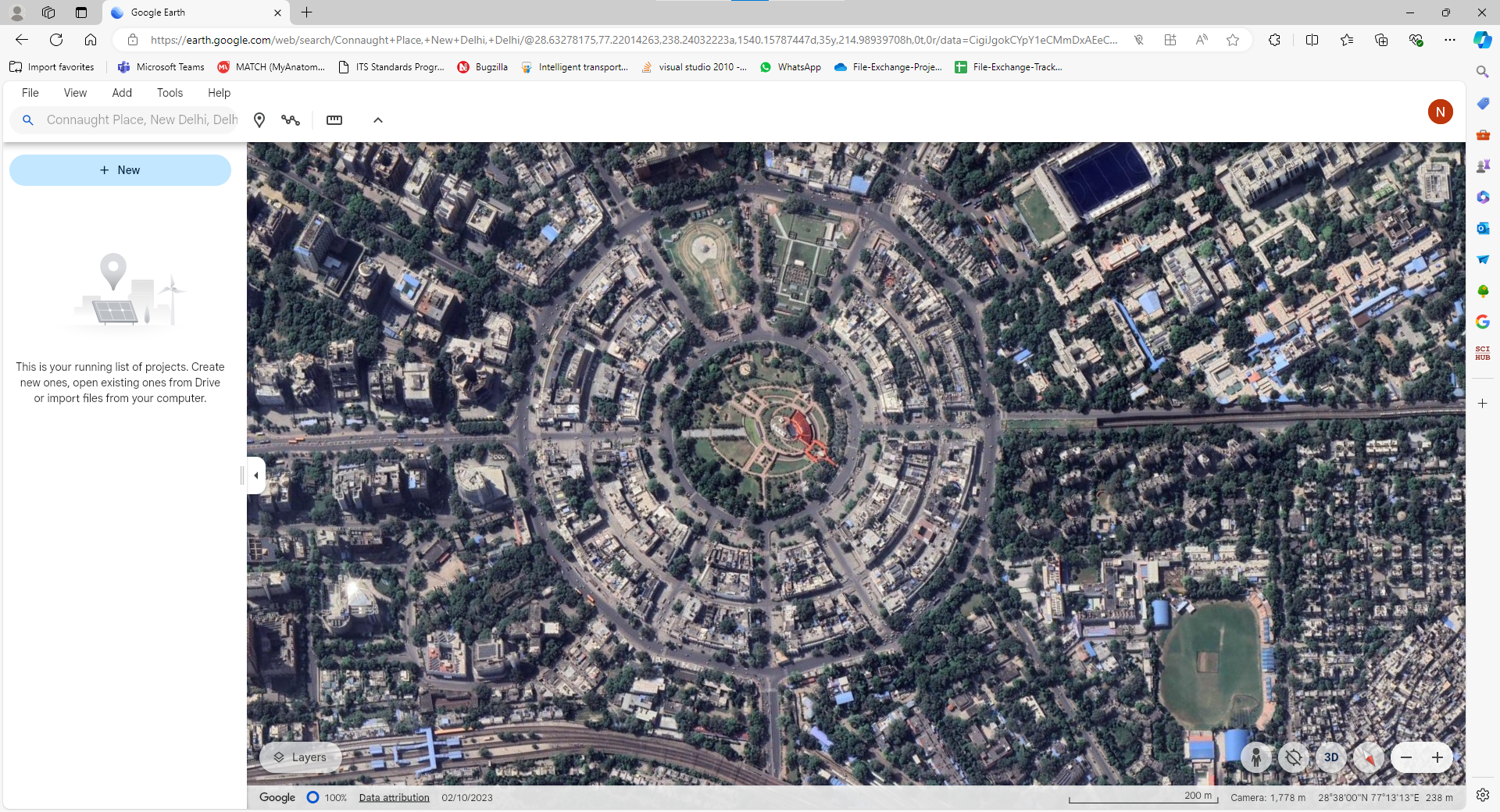
Step 2: Take a screenshot of the desired road traffic scenario and save the image.
Step 3: Import the background image into SUMO using the "Edit Coloring Schemes and Background" option.
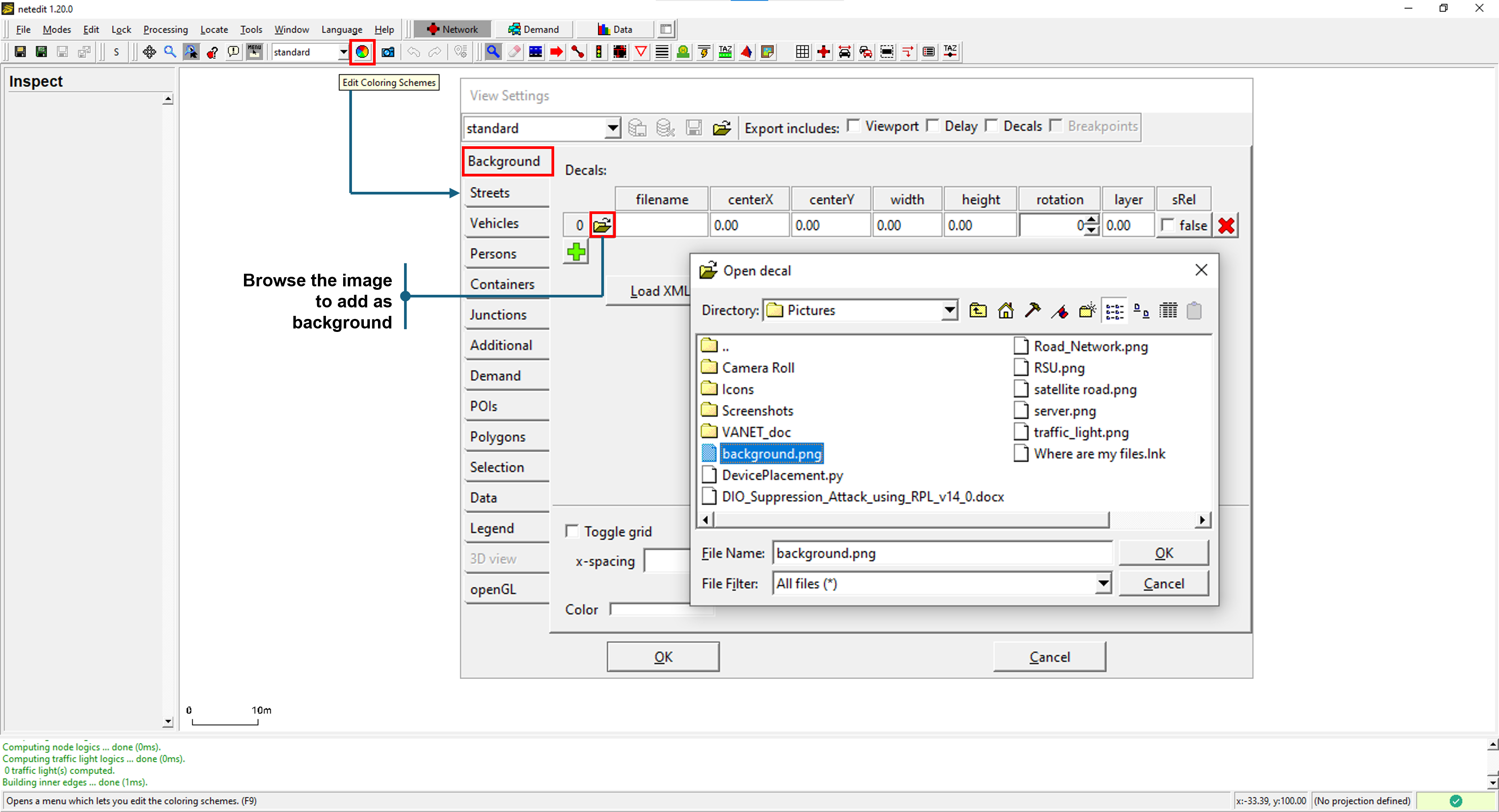
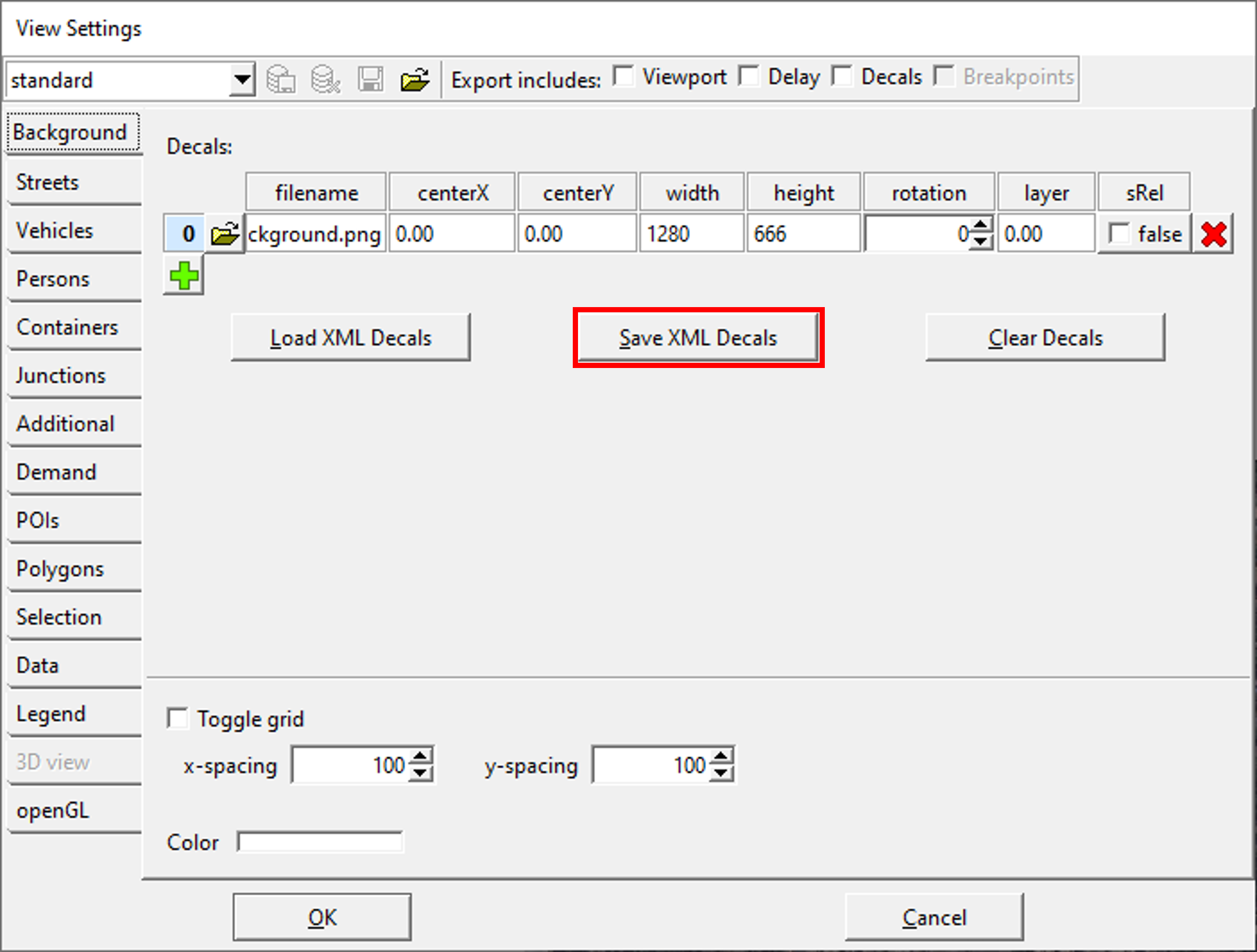
Step 4: Check the dimensions of the imported image and resize it within NetEdit. Save the settings by clicking "Save XML Decals."
Step 5: Adjust the width of the edges created to match those in the background image or adjust the image dimensions to align with the default road width in NetEdit.
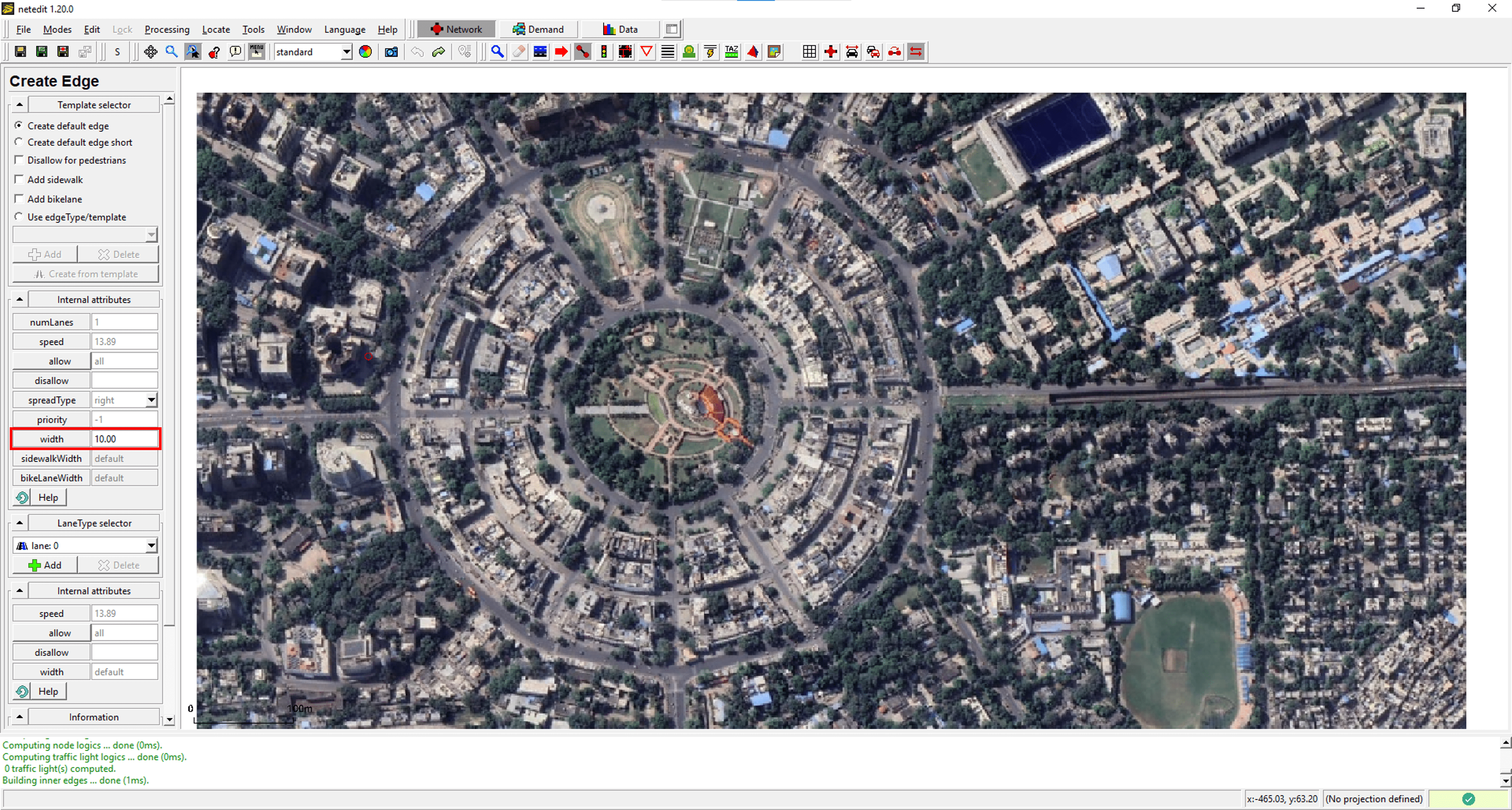
Step 6: If the road has multiple lanes, use the lane type selector under the edge mode of the network in NetEdit to add them.
Step 7: Once the edges are created, add vehicles to the created edges and save the configuration.
Step 8: Open the saved SUMO configuration file (.sumocfg) in any editor and add the saved decals XML.