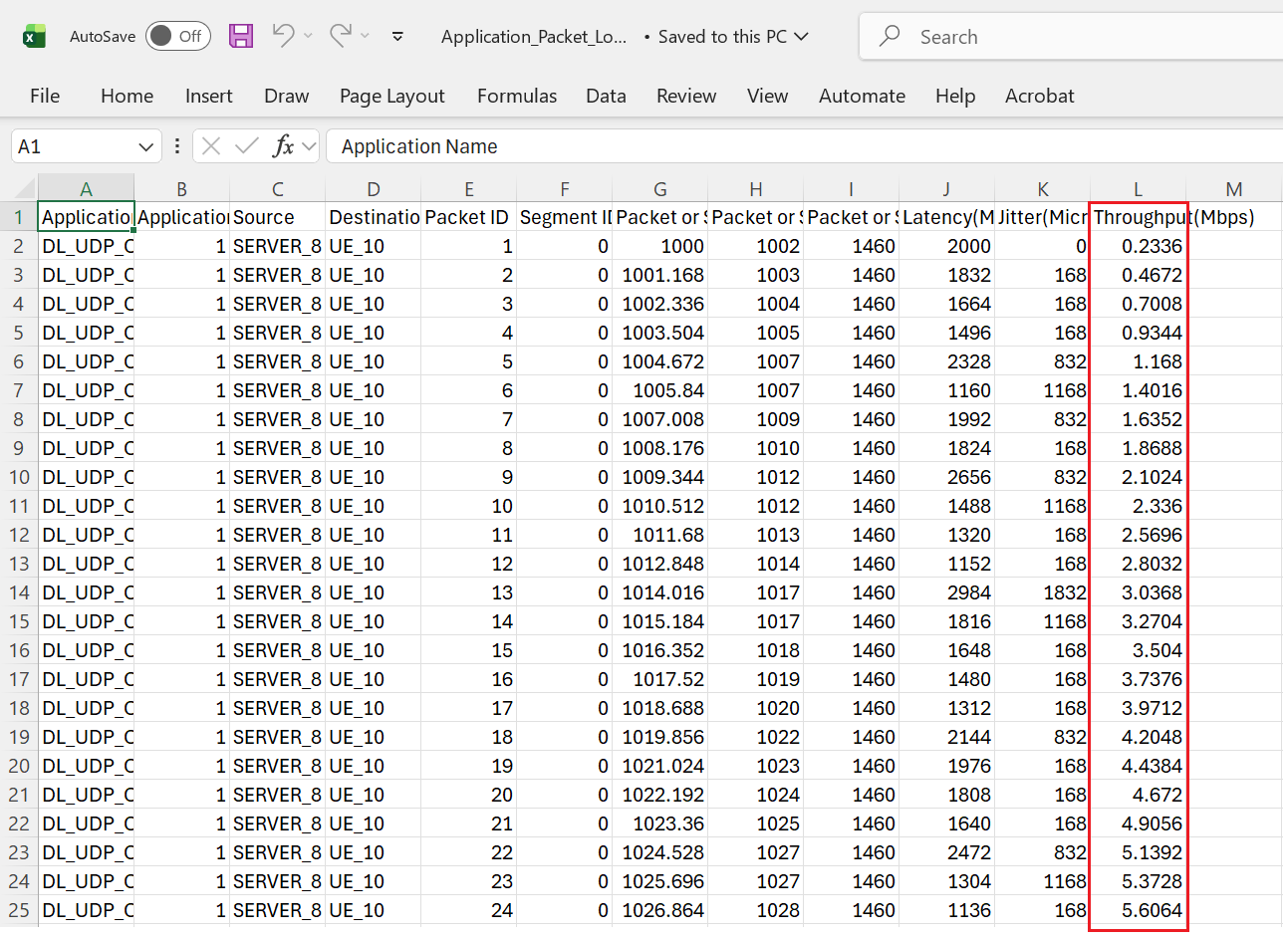
After simulating a NetSim scenario, users may notice that the throughput field in the Application_Packet_Log.csv file appears as -1. This often leads to confusion, especially when parsing log files directly from the log folder without using the GUI.
This article explains why this occurs and how you can correctly generate throughput values during automation workflows.
Why Throughput Appears as -1 ?
The throughput value is shown as -1 because NetSim’s GUI computes and updates the throughput only when an Average Window (e.g., 50 ms or 100 ms) is applied.
- When the Average Window is not specified, the log file initially records the throughput as -1, indicating that the throughput has not yet been calculated.
- When you open the Simulation Results window in the GUI, NetSim processes the log file and computes the complete throughput values, updating them in the displayed results.
Thus, -1 acts as a placeholder until the throughput calculation is performed by the GUI.
Steps to Compute Throughput in the Application_Packet_Log.csv File
If you are running simulations through automation and want to obtain the correct throughput values directly from the log folder, follow the steps below.
Once the simulation completes, run the ThroughputCalculator.exe located in the Advanced_PlotScripts folder of NetSim installation directory using the following command:
"C:\Program Files\NetSim\Standard_v14_4\
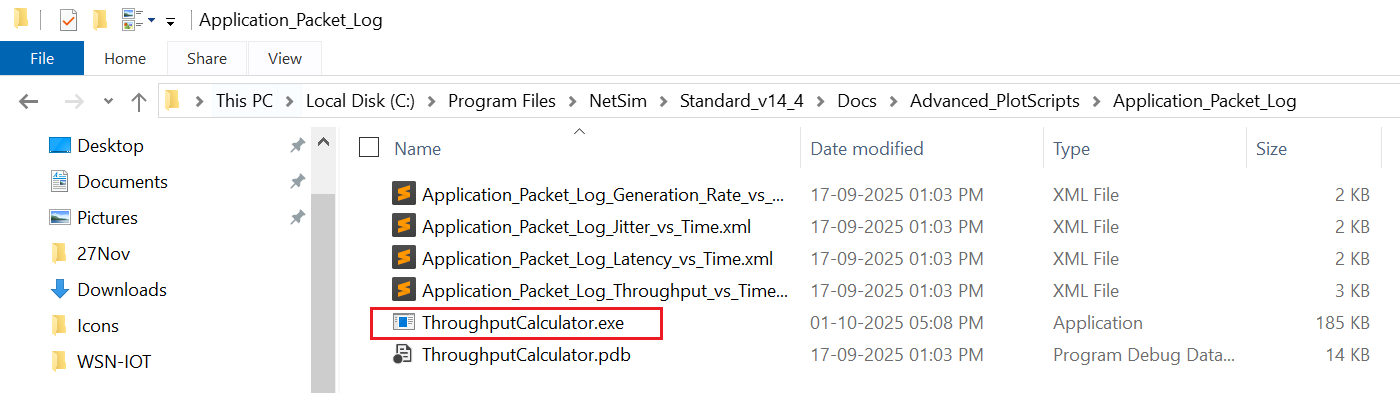
1. Open the command prompt and call the ThroughputCalculator.exe using the command as shown below
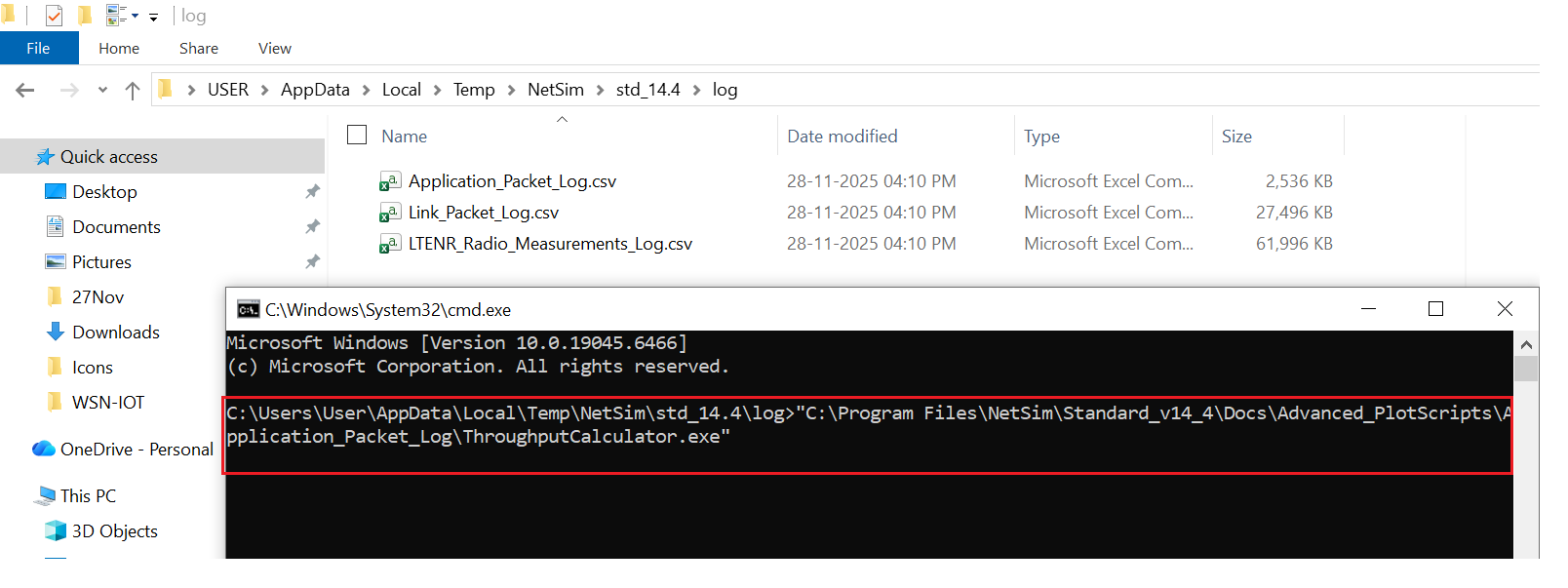
2. This updates the throughput values in Application_Packet_Log.csv
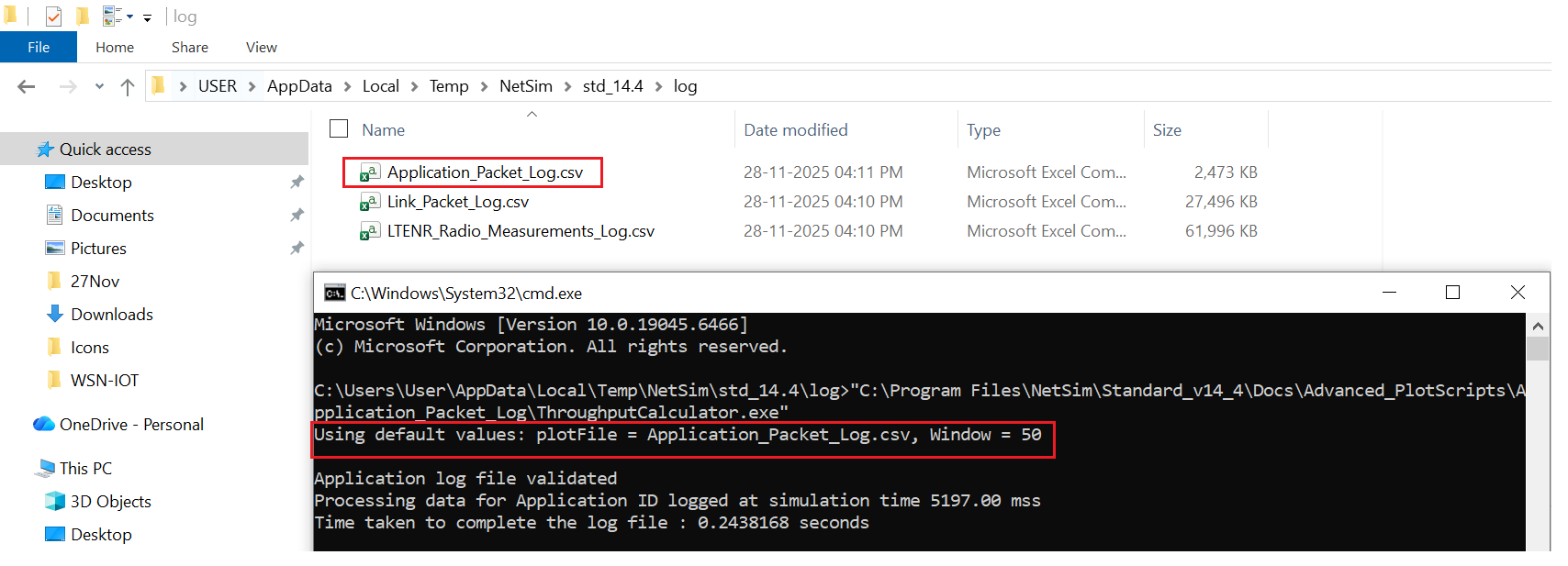
3. Open the Application_Packet_Log.csv and observe the computed throughput results.